顯示具有 穿越機 標籤的文章。 顯示所有文章

2018年1月15日 星期一

INAV-3-1.Learning INAV interface one by one (學習INAV介面)


Welcome back to learn about INAV interface,there are 3 parts of main page
(歡迎回來INAV介面介紹,在執行INAV軟體後在首頁我們可以分成3個部分)


------------------- Welcome Page -------------------


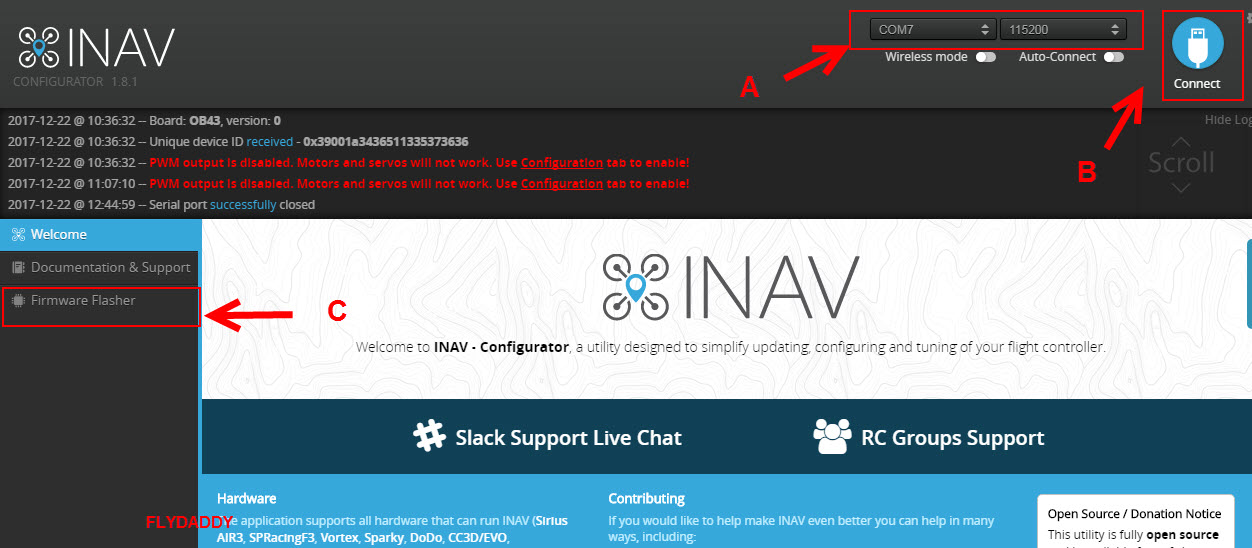
TOP:
A:  [Connect port list] [連接埠]
   After connect your fly board you can see a new com port (ex:COM7) , it is meaning you did install usb drive very well, if did't see , please check your usb driver install step again.
also in INAV if you do a FW upgrade processing , here will show "DFU"  mode.
 如果你有正確的安裝驅動程式的話會看到新的連接埠出線,這表示你安裝驅動程式的過程很正常,如果沒出現請再檢察是否安裝驅動程式沒有做好,此外如果你進行更新分位的時候這裡也線自動進入DFU模式


B: [Connect button] [連接按鈕]
  Choose a port and click this button  into INAV setting page 
 選好連接埠後點選Connect按扭進入設定頁面


------------------ Main Page -------------------


Working: blue light  , failed/Error: red light
燈號顯示: 正常:藍燈 錯誤:紅燈


A:  [Motor arming] : status of motor starting  馬達是否啟動狀態 
B: [Failsafe mode]: status of failsafe (setting Failsafe page) 是否進入失控保護狀態
C: [Serial link status]: status of your receiver  接收器的狀態
D: [GYRO]: status of gyroscope 陀螺儀狀態
E: [Accel]:status of accelerometer 加速度計狀態
F: [Mag]: status of magnetometer  磁力計 / 羅盤 /指南針狀態
G: [Baro]: status of barometer 氣壓計狀態
H: [GPS]: status of GPS 導航狀態
I: [Flow]: status of optical flow 光流計狀態 (非必需)
J: [Sonar]: status of sonar / range finder 聲納或測距儀狀態 (非必需)
K:[Speed]: status of airspeed 空速計狀態 (非必需)
L:[databflash storage]: status of external micro SD (資料儲存裝置 通常是內建或是SD卡) 
M:[Profile]: choose one of profiles for using  (可以分別設定三個系統設定檔進行切換)
N:[Connect/Disconnect]: Connect or Disconnect INAV (連線/中斷連線)
O:[Battery]:Battery voltage (電壓顯示此功能必須要焊接飛控)
P:[LOG]: log / message  (顯示操作過程訊息)


 A. Pre-arming checks area (解鎖檢查表)
Before you unlock your motor (arming) , this area all items must be green light first, it's meaning system ready to fly , if you see any error from here, you should troubleshooting and fix it first.
要能夠解鎖的首要條件就是這個區域必須都是綠燈,如果有任一紅燈則無法正常解鎖
這裡所列的項目通常會跟你的配置有關


B.Info area(基本資訊顯示區)
Here


C.GPS area( 導航資訊顯示區)
Here will show GPS information ,(if you have GPS) if you want to get more detail ,please click
Page of GPS.
這裡將顯示部分跟GPS有關的訊息,如果需要取得更多資訊請點到GPS設定頁面

D.testing your drone (飛行器測試區)
Trying move your controller and check it when you connect to USB
連接USB後你可以對你的飛控做一些動做,你非發現它會跟著你的飛控方向運做

2017年12月21日 星期四

INAV-2.What INAV document we need to read? (INAV必讀的資源)


INAV 必讀的一些文件
 ( What INAV of document we need to read it first , you can reference URL as below )

https://github.com/iNavFlight/inav/tree/master/docs

在操作INAV 軟體前,閱讀以下這些文件將有助於更明確的設定
(Now , I will list some doc which you should read or understand things for INAV)

Installation
https://github.com/iNavFlight/inav/blob/master/docs/Installation.md

LedStrip
https://github.com/iNavFlight/inav/blob/master/docs/LedStrip.md

PID tuning
https://github.com/iNavFlight/inav/blob/master/docs/PID%20tuning.md

Profile
https://github.com/iNavFlight/inav/blob/master/docs/Profiles.md

RSSI
https://github.com/iNavFlight/inav/blob/master/docs/Rssi.md

Receiver
https://github.com/iNavFlight/inav/blob/master/docs/Rx.md

Stick control (*)
https://github.com/iNavFlight/inav/blob/master/docs/Controls.md


INAV-1.Introduction (INAV介紹)


 玩穿越機的人很多,不論是使用何種飛控所有軟體幾乎都建構在Betafight / Cleanfight 比較多 似乎對INAV知道的人或是討論的人真的少之又少,可以找到的資源絕大部分都是在youtube 上的影片居多且都是針對固定異多於討論穿越機

In my opinion , the racing drone player who always using Betafight / Cleanfight more then Inavfight.
Actually, there are many INAV videos with flying wing on youtube in English but not tomany  websites dissc

目前主流的地面站分別是 Betafight (BF) / Cleanfight (CF) and INAV ,其中INAV又是Cleanfight  分支出來的,基本上絕大部分介面/設定方式與BF/CF都是差不多的,比較不一樣的地方是INAV針對GPS進行了特別的強化。

There are 3 popular drone of software name is Betafight (BF) 、 Cleanfight (CF) and INAV, because INAV is forked from Cleanfight so the interface / setting way I believe 80%  is same with CF /BF and INAV especially strengthen a GPS function.

總之,這裡將會以Racing drone的角度來操作INAV的軟體,如果你有甚麼想法歡迎分享給我知道
Anyway , In INAV I will focus racing drone first , if you have any idea please let me know


2017年12月19日 星期二

INAV-快速克服閱讀INAV英文介面的翻譯方式


對沒有碰過地面站軟體的的飛友而言 安裝 INAV / BF /CF 也許很容易就搞定,但是要操作 INAV / BF /CF軟體,我認為不難但也不算是一件太簡單的事,因為這裡要分硬體資源跟軟體資源兩方面來說

硬體資源:
1.你對你的硬體架構了解嗎,你的UART是什麼? 哪條線該接哪裡? 插哪裡才能連接地面站,如果都不了解那怎麼除錯?   (解決方法為:去問知道的人)

軟體資源:
首先要操作軟體這裡要先符合兩個條件
1.你了解地面站這些參數在幹嘛的嗎?  (不然你也不知到要改甚麼)
2.絕大部分的軟體都是英文介面,閱讀英文的時刻來了 (要死了~這個)

PS:有些參數的用途通常要搭配文件來看

 (解決方法為: 1.去問知道的人)
                      2.去學英文
                      3.用翻譯軟體快速的幫助自己

所以今天就針對軟體資源方面(如何快速克服英文閱讀) 這件事來解決這個惱人的小問題
這裡的解決配套措施為以下3種

1.死記:

如果有人告訴你要設定接受器的位置是在 INAV > PORTS 的頁面 > 選擇對應飛控的UART > 開啟 Serial RX ,那麼你就筆記一下,需要時拿出來參照一下就好。

PS:每種飛控的版本使用的UART對應都不一樣


2.在電腦上使用翻譯軟體
因為很多參數寫的都很簡單但到底是幹拿的卻是莫宰羊,所以參考文件是有必要的
所以安裝一個Chrome的瀏覽器後如果右上角沒有自動出現翻譯符號的話就請去下載
google 翻譯軟體 plug-in

https://chrome.google.com/webstore/detail/google-translate/aapbdbdomjkkjkaonfhkkikfgjllcleb?hl=zh-TW


首先原本是英文的內容,經過翻譯軟體的雞婆,就會中文化。雖然字義不見得會一樣但是
我想70-80%的準確率是一定有的,就算遇到不太順的地方自己加以意會一下前後文就能很快了解這文件再說甚麼


3.在手機上使用翻譯軟體 (線上與離線方式)

a.先去google play下載google 翻譯軟體並安裝,完成後開啟該軟體

 b.點選設定 > 點選離線翻譯 > 找到需要的語言點選離線下載中文離線翻譯檔案


4.開啟翻譯軟體後要設定翻譯方向 左邊應該是英文 右邊是中文
 (線上)對著你要翻譯的英文畫面直接拍照,就會出現翻成中文的內容
  (離線)對著你要翻譯的英文畫面,會直接翻譯成中文


5.下面的框框如果你只想要單獨一個單字的翻譯就點那個字,就會有單字翻譯


 6. 如果要全部翻譯就點選[全選]

 翻譯後的中文,雖然翻譯的卡卡的,但是有勝於無,請自行加點創造力與理解力就會很容易看得懂


拉到最上面還有原始英文可供對照


所以~ 很簡單吧,此方法當然不只用在這裡,不管是出國看菜單、購物、閱讀,做任何需要語言轉換的時候都很好用


INAV - Configurator install(INAV安裝)

INAV - Configurator install(INAV軟體安裝)

安裝方法與Cleanfilght 或 Betafight 是相同的(Install way same Cleanfilght or Betafight )

1.開啟chrome瀏覽器連到google的應用程式商店 > 搜尋 INAV - Configurator 或直接點選下面連結
(Open a chrome broswer and connect to google app shop or just click link as below )

https://chrome.google.com/webstore/detail/inav-configurator/fmaidjmgkdkpafmbnmigkpdnpdhopgel

2.點選 加到chrome
(Click [Add to chrome] button)


3.點選新增應用程式
(Click add application )


3.安裝過程需要等一下,然後從應用程式頁面會看到INAV的圖示
(Waiting for a while then you can see your chrome browser application page include INAV icon already)


4.下載需要的驅動程式,如果之前已經有使用Cleanfilght 或 Betafight 其實這三個驅動程式是相同的。可以依照主畫面下的連結進行下載安裝或是直接從我的google drive下載
(Download the driver what you need , if you use cleanfilght or betafight before actually the drivers are same.
you can follow INAV main page to download drive or just download from my google drive
)


我的google drive下載位置 (download from my google drive)
https://drive.google.com/drive/folders/1_UpshpogyADwJ31AaSvGf0-oR8N26bfa


5.安裝CP210X drive 
請將下載的 [CP210x_Windows_Drivers.zip] 解壓縮,並執行CP210xVCPInstaller_x64.exe
(Install CP210X drive , please download and nncompress CP210x_Windows_Drivers.zip file after double click CP210xVCPInstaller_x64.exe)


 點選下一步 (Click button NEXT)

點選[我同意此合約]> 下一步 (Click [I agree ] and click button NEXT)


完成後點選[完成]離開 (Click [Finish] and exit program)


6.安裝SMT32 drive
請將下載的 [en.stsw-stm32102.zip] 解壓縮,並執行VCP_V1.4.0_Setup
(Install SMT32 drive , please download and nncompress en.stsw-stm32102.zip file after double click VCP_V1.4.0_Setup)


 點選下一步 (Click button NEXT)


 點選Install (Click button Install)


完成後點選[完成]離開 (Click [Finish ] and exit program)


7.5.安裝Zidag (for DFU)  
請執行zadig-2.3.exe
(double click zadig-2.3.exe for install Zidag )


詢問是否要線上檢查版本,點選 [NO]
usually answer no , if has a available new version , you can click yes (inter support)


此圖示為接入飛控後再執行Zidag 安裝時會出現飛控晶片(SAMPLE)
The picture is execute zidag with connect controller , you can see SMT32 bootloader


在還沒接入飛控前安裝,請點選[WINUSB] > [Install WCID Driver]
(Without controller install , please select [WINUSB]  and clieck [Install WCID Driver])

完成後點選[Close]離開
(Finish and exit)

2017年7月27日 星期四

安裝 Cleanfight 軟體(Install Cleanfight app)


1.開啟chrome瀏覽器連到google的應用程式商店 > 搜尋cleanfight 或直接點選下面連結
(Open a chrome broswer and connect to google app shop or just click link as below )

https://chrome.google.com/webstore/detail/cleanflight-configurator/enacoimjcgeinfnnnpajinjgmkahmfgb?hl=zh-TW


2.點選 加到chrome
(Click [Add to chrome] button)


3.點選新增應用程式
(Click add application )


3.安裝過程需要等一下下然後從應用程式頁面會看到Cleanfigh的圖示
(Waiting for a while then you can see your chrome browser application page include Cleanfight icon already)